

Stop Using Your Inbox as a Reading List
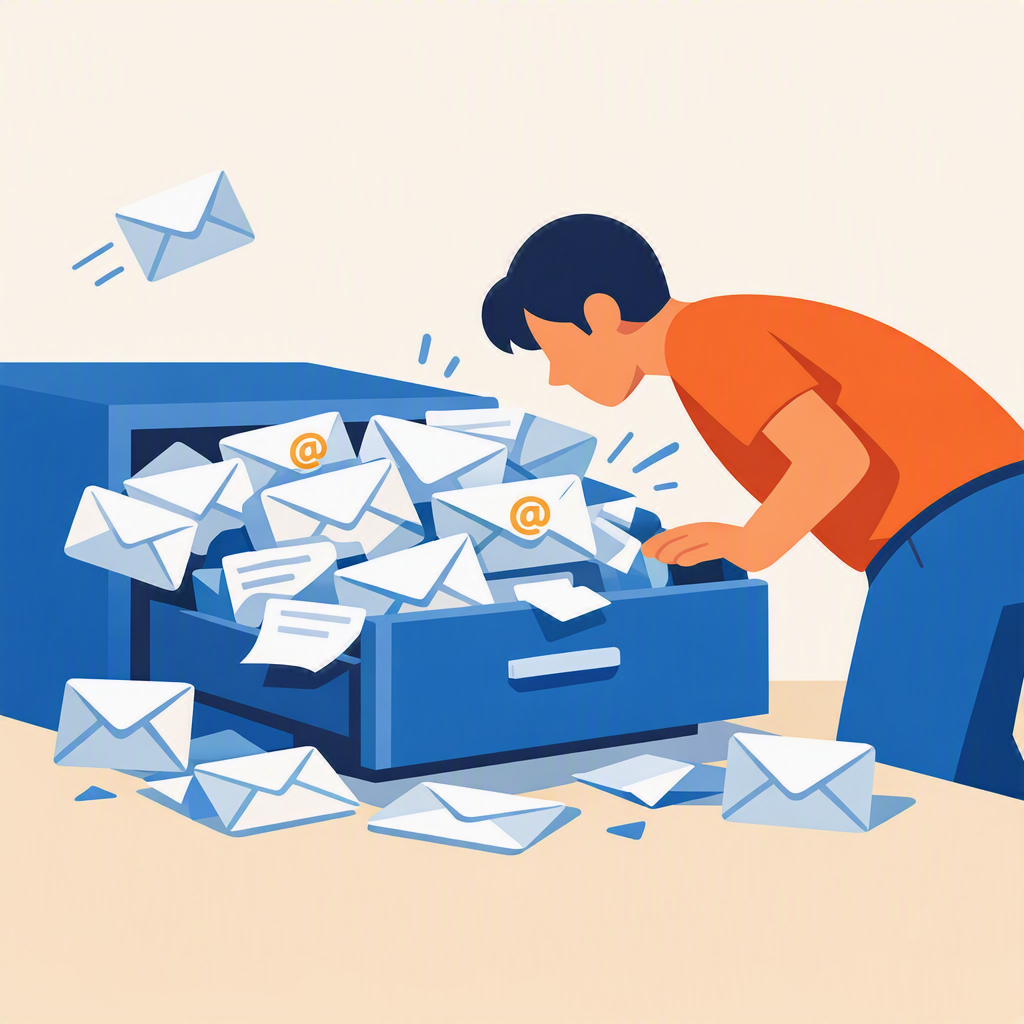 A lawyer recently described working through 181 emails saved in a folder called “To Watch or Read.” The folder included articles, LinkedIn posts, TikTok links, and reminders. The oldest item had been sitting there since February. Rather than opening each email one at a time, the lawyer used AI to open the messages, follow the links, summarize the content, and compile the results into a Word document.
The experiment was useful. The lawyer rediscovered sanctions cases they had meant to write about and found resources that were still relevant. They also learned a less encouraging lesson. Many of the saved TikTok links were already dead. The only thing left was the note they had written when they first saved the link.
Lawyers often turn their inbox into a reading list, bookmarking tool, knowledge repository, and task manager. You see something useful, forward it to yourself, move it to a folder, or leave it unread so you will remember to come back to it later. The trouble is that email was not designed to do all those jobs. Newsletters pile up. Articles go unread. Useful resources disappear into folders that made sense when you created them but slowly become digital junk drawers.
Using AI to clean up a backlog can be a useful rescue strategy. It is also a warning sign. If you need AI to excavate months of saved reading from your inbox, the real opportunity is to build a better system before the backlog starts.
Separate Communication from Information
Email is a communication tool. It is good for conversations, notices, correspondence, and quick exchanges. It is not especially good at managing your ongoing professional education, monitoring developments in your practice area, or preserving information so you can find it later.
When newsletters, alerts, blog posts, court opinion summaries, legal publications, and marketing emails all arrive in the same place as client communications, court notices, filings, and internal firm messages, everything competes for your attention. The messages you intend to read “someday” usually lose.
Instead of using email as your news reader, consider moving informational content into a tool designed for that purpose.
Bring the News to You
Feed readers have been around for decades, but they remain one of the most useful and underused productivity tools for lawyers. A feed reader gathers content from blogs, news sites, court opinion summaries, legal publications, and other sources in one place. Instead of visiting multiple websites or sorting through dozens of newsletters, you can scan new items when it is convenient for you.
Feedly is one popular option. It offers a free plan that lets you follow a substantial number of sources. Paid plans add features such as notes, highlighting, keyword alerts, integrations with other applications, and more advanced search options. Feedly can also help you save useful items to tools such as OneNote or Evernote for later reference.
Inoreader is another strong option. It is especially useful if you want to follow sources that may not offer a traditional RSS feed. It can also help with email newsletters, automation, search, and content monitoring. For lawyers who want to track specific practice areas, regulatory developments, technology changes, or competitors, those monitoring features can be valuable.
Informational content should not have to fight for space in your primary inbox. A feed reader lets you choose a time to review updates instead of letting every newsletter interrupt your day as it arrives, or get banished to an email black hole.
Even five or ten minutes in the morning may be enough to scan the items most relevant to your practice.
Keep What Matters in a Knowledge Base
Finding good information is only half the challenge. The other half is finding it again six months later. That is where note-taking and knowledge-management tools come in. These tools give you one place to keep what matters, organized so you can actually retrieve it when you need it.
If your firm uses Microsoft 365, you probably already have access to OneNote. Many lawyers overlook OneNote because it does not get as much attention as Word, Outlook, or Teams. However, OneNote can be a very useful research and knowledge-management tool. You can organize notebooks by subject, practice area, client, matter, or project. You can save articles, PDFs, screenshots, emails, web pages, meeting notes, and your own observations into a searchable system that is already included in many Microsoft 365 subscriptions.
Evernote remains another good option. It was built around capturing information from many places. Its web clipper lets you save articles directly from your browser. You can organize information with notebooks and tags, which makes it easier to locate later. Email-to-Evernote functionality also lets you send useful material directly into your knowledge base.
The specific tool matters less than the habit. Save valuable information somewhere designed for long-term retrieval rather than leaving it buried in an email folder.
What If You Already Receive Important Newsletters by Email?
Many lawyers hesitate to change systems because they already receive important newsletters at a particular email address. Your state bar, a legal publisher, a court, or a practice-specific organization may send useful content to the address you use every day. You may not want to update dozens of subscriptions.
Outlook rules can identify newsletters from specific senders and move or forward them to a better destination. Depending on your workflow, that destination might be a dedicated folder, a separate reading mailbox, or a process that captures the content in OneNote or Evernote. Power Automate can create more advanced workflows that move newsletters, save attachments, or capture content into a knowledge-management system.
The goal is not to stop receiving newsletters. The goal is to keep them from piling up in your primary inbox or in a folder you rarely open.
It is also worth asking whether newsletters belong in your law firm mailbox at all. If the content is for professional development, marketing ideas, general awareness, or future writing projects, a separate reading workflow may be cleaner and easier to manage.
Add Context Before You Save
The most valuable lesson from the LinkedIn story was not really about AI. It was about the impermanent nature of digital information. Articles move. Websites change. Videos disappear. Social media links break. In the LinkedIn example, many of the saved TikTok links were no longer available but the notes survived.
Whenever you save something, take a few seconds to add a short note about why you are saving it. What caught your attention? What issue does it address? Is it connected to a client question, CLE presentation, article idea, firm initiative, or future project? Those few words may be more useful later than the link itself.
Months from now, when you are preparing a presentation, writing an article, researching a client issue, or training someone in the firm, you will not just have a saved link. You will have a reminder of why the information mattered.
Where AI Fits In
AI can be a powerful tool for information management, but it works best when it has something organized to work with.
Imagine a notebook filled with saved legal technology articles, ethics updates, practice management resources, client-service ideas, and your own notes gathered over time. Instead of manually searching through hundreds of entries, you could ask AI to summarize themes, identify trends, find supporting examples, draft an outline, or answer questions about the saved content. This use case is probably why Microsoft has recently moved Copilot Notebooks into OneNote.
There is another benefit. When you apply AI to a curated collection of newsletters, articles, research, and notes instead of an entire mailbox, you have better control over what information is included. That can reduce the risk that privileged or sensitive client information becomes part of the process.
The lawyer who used AI to summarize 181 saved emails found value in rescuing a neglected reading folder. Many of us probably have a similar folder somewhere in Outlook.
The bigger lesson is not that AI can clean up the mess after the fact. The lesson is that feed readers, note-taking applications, and better information habits can help prevent the mess from developing in the first place.
Conclusion
When you stop treating your inbox as a reading list and start treating it as a communication tool, staying informed gets easier. Feed readers bring information to you. Knowledge-management tools preserve what matters. AI helps you retrieve, summarize, and use it later. Together, they create a better system than a folder full of unread emails waiting for a quiet day that never seems to arrive.